Buy a headset for the exact device and connection you will use. A plug that fits, or a wireless logo on the box, does not by itself confirm game audio, microphone input and the controls you need.
Write the complete connection path
Start with one sentence: “I want game sound from this console and my microphone in this chat service.” Add the controller model, any USB receiver and the computer or phone running chat. That path is more useful than a list of brands. A headset may work through a controller jack on one platform and require its supplied wireless receiver on another.
| Connection | Check before purchase |
|---|---|
| 3.5 mm analog | Headphone and microphone support at the exact socket; any required splitter or adapter |
| USB cable | Whether this connection carries audio or only charges the headset |
| USB wireless receiver | Exact supported platforms and any platform switch on the receiver |
| Bluetooth | Whether the gaming device accepts Bluetooth audio and what happens to the microphone |
| Console-specific wireless | Explicit support for the console generation you own |
Official examples show why the path matters
Sony’s current PS5 error guidance identifies incompatible Bluetooth audio devices. Do not buy ordinary Bluetooth headphones expecting direct PS5 pairing simply because another wireless headset works with the console. Microsoft’s Xbox Wireless Headset, by contrast, has explicitly documented Xbox and Windows connection options. Its named compatibility does not make every Bluetooth or USB headset an Xbox headset.
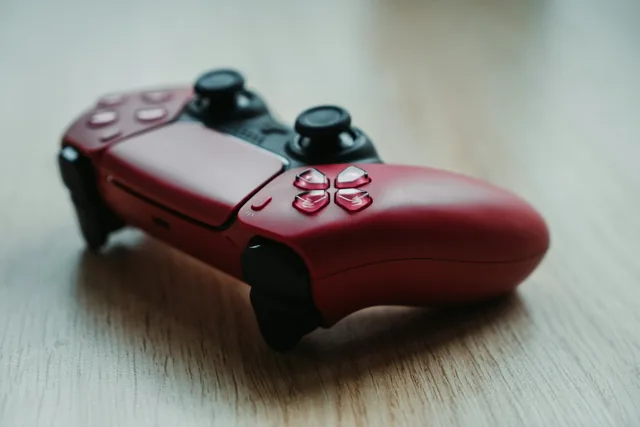
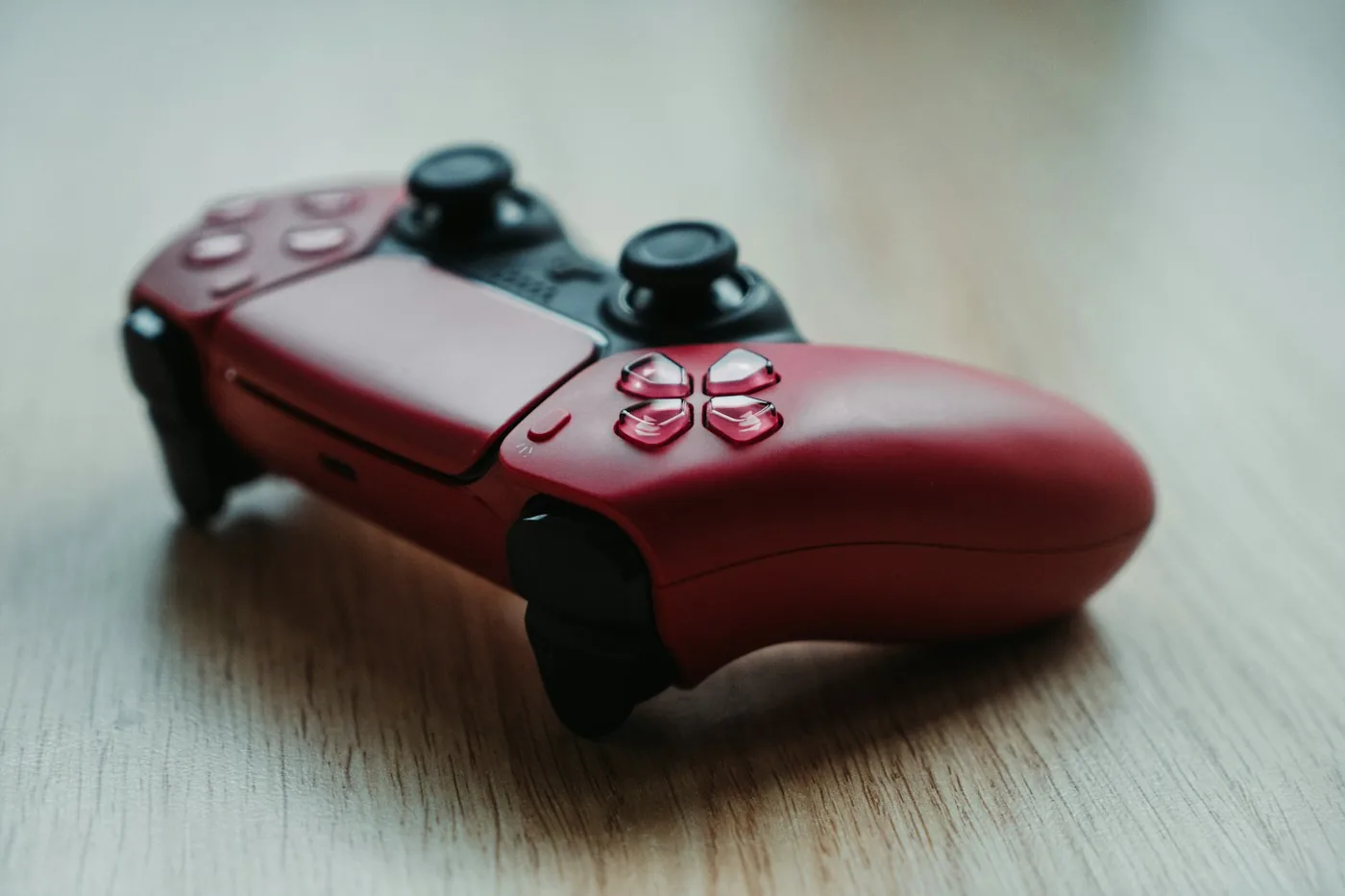
A controller can create another distinction. Sony says the DualSense headset jack requires a wired connection when the controller is used with a PC or Mac. Pairing that controller over Bluetooth is therefore not evidence that a headset plugged into it will carry audio on the computer.
Check microphone behavior separately
Look for confirmation of microphone input, mute controls, sidetone and game/chat balance on the intended platform. “Audio compatible” can be less specific than you need. If chat runs on a phone while the game runs on a console, consult the headset’s simultaneous-audio instructions rather than assuming two saved pairings can be heard together.
For a shared computer, decide whether the headset should appear as one audio device or whether the game and chat application need separate output choices. A hardware dial may depend on a supported platform or software arrangement; its presence does not prove identical behavior everywhere.
Use a short acceptance test
After setup, play game sound, join a private microphone test, try mute and adjust the intended balance controls. Reconnect the device in the way you expect to use daily. This is a suggested owner check, not a claim that we tested the headset. Choose a different connection or product if a required function is absent, even when basic sound works.
Sources and method
This is a researched decision guide. Product facts were checked against the primary sources below on November 2, 2026. Selection advice and worked examples are editorial reasoning. This guide does not include hands-on testing.
- PlayStation: current incompatible Bluetooth audio guidance
- Xbox: Wireless Headset supported connections
- PlayStation: DualSense headset-jack limitations on computer
We may earn a commission when you purchase through links on this page. As an Amazon Associate I earn from qualifying purchases.