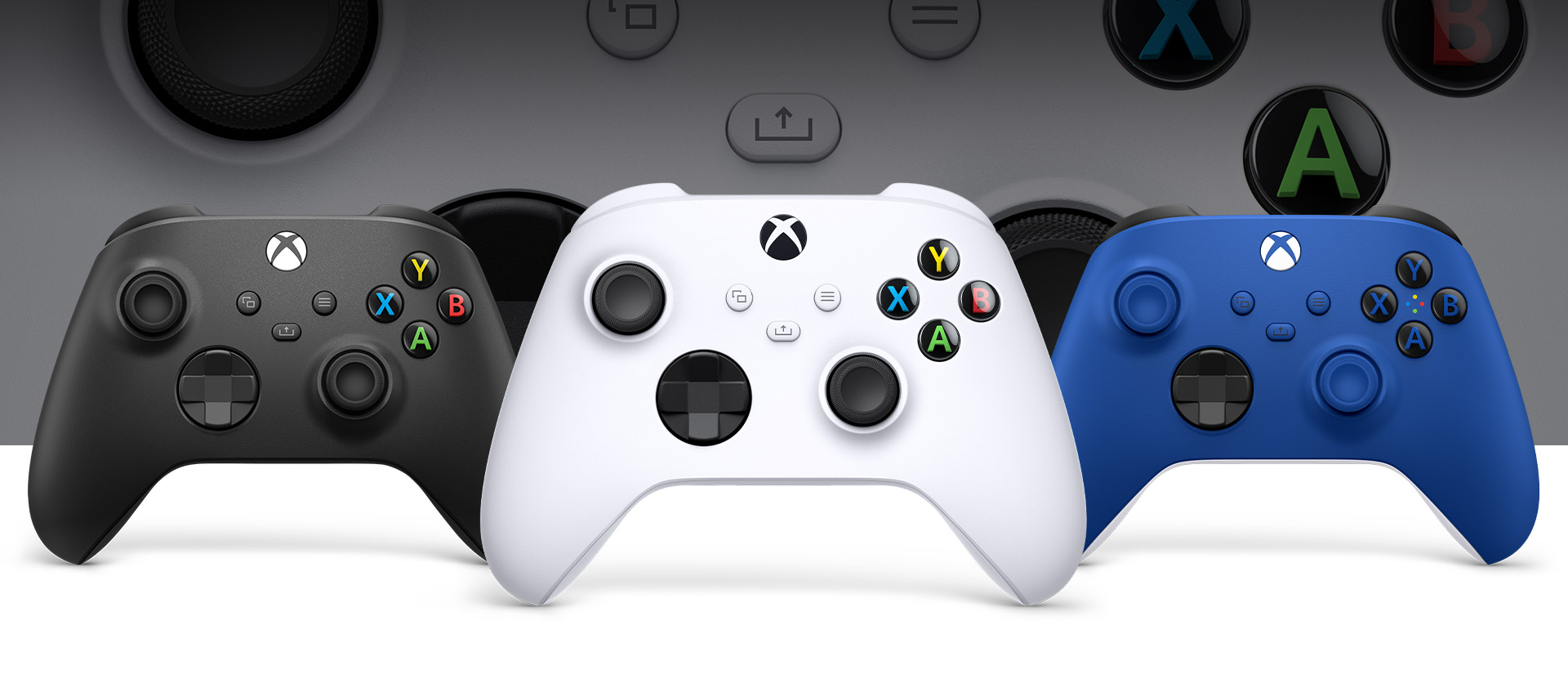
The Robot White Xbox Wireless Controller is the standard Xbox gamepad in a white finish. The catalog listing identifies it as the Xbox Core Wireless Gaming Controller for Xbox Series X|S, Xbox One, Windows PC, Android and iOS (ASIN B08K4HLCPr). Microsoft’s current product name is Xbox Wireless Controller. This guide covers the color variant and practical compatibility details.
What you get with the Robot White variant
Robot White changes the controller’s finish; Microsoft’s Xbox Wireless Controller page describes the same modernized shape, textured grip, hybrid D-pad and dedicated Share button across its color choices. It pairs wirelessly with Xbox consoles and supports Bluetooth on compatible Windows PCs, tablets, iOS and Android devices. A 3.5 mm stereo headset jack is provided for compatible wired headsets.
Compatibility and connections
- Xbox: Xbox Series X|S and Xbox One connect using Xbox Wireless.
- PC and mobile: Microsoft lists Windows 10/11, Android and iOS. Bluetooth support and game compatibility can depend on the device and operating system.
- Wired use: Microsoft supports USB-C connectivity. Confirm whether the seller’s package includes a cable before ordering.
Microsoft notes that not all versions of the controller include an expansion port. If you plan to attach a headset adapter or another accessory through that port, check the specific unit and listing photos before buying.
Pairing basics
- For Xbox Wireless pairing, turn on the console and controller, then use the pairing buttons on both devices.
- For Bluetooth, hold the controller’s Pair button until the Xbox light flashes, then select the controller in the computer or mobile device’s Bluetooth settings.
- Install controller firmware updates through the Xbox Accessories app when Microsoft offers one for the connected device.
- Test the controller in the specific game and platform you intend to use; supported features vary by game and device.
Robot White catalog offer
The catalog’s Amazon offer is Xbox Core Wireless Gaming Controller – Robot White. Check the current seller, condition, return terms and included batteries or cable on the listing; packages can differ. We may earn a commission from qualifying purchases at no extra cost to you.
Choosing a color or model
Choose Robot White if the finish suits your setup; the core wireless feature set is the same as the standard Xbox Wireless Controller in Carbon Black and other listed colors. The Elite Series 2 Core is a different, higher-end controller line with customizable components. See our Xbox Wireless Controller Carbon Black guide for another standard-color offer.
Official reference
Specifications checked against Microsoft’s Xbox product pages on November 19, 2026. This is a researched product guide, not a hands-on review.